
What Is a HEIC File? Apple’s Photo Format Explained Simply
October 22, 2026
What is HEIC? If you own an iPhone, there is a good chance every photo you have taken since 2017 is saved as a HEIC file. Most people never notice, until the day they email a photo to a Windows-using colleague, try to upload it to a website, or back it up to a PC, and it simply will not open. This guide explains what a HEIC file is, why Apple chose it, and exactly what to do when one lands on the wrong device.
What Does HEIC Stand For?
If you are asking what is HEIC, the short answer is simple: HEIC stands for High Efficiency Image Container. The name describes what the format does: it stores your photos at roughly half the file size of a JPG while keeping the same visible quality.
The “high efficiency” part comes from its compression engine, HEVC (also called H.265). That is the same family of compression used for 4K video streaming. Applied to a still photo, it squeezes out a remarkable amount of redundant data your eye would never notice.
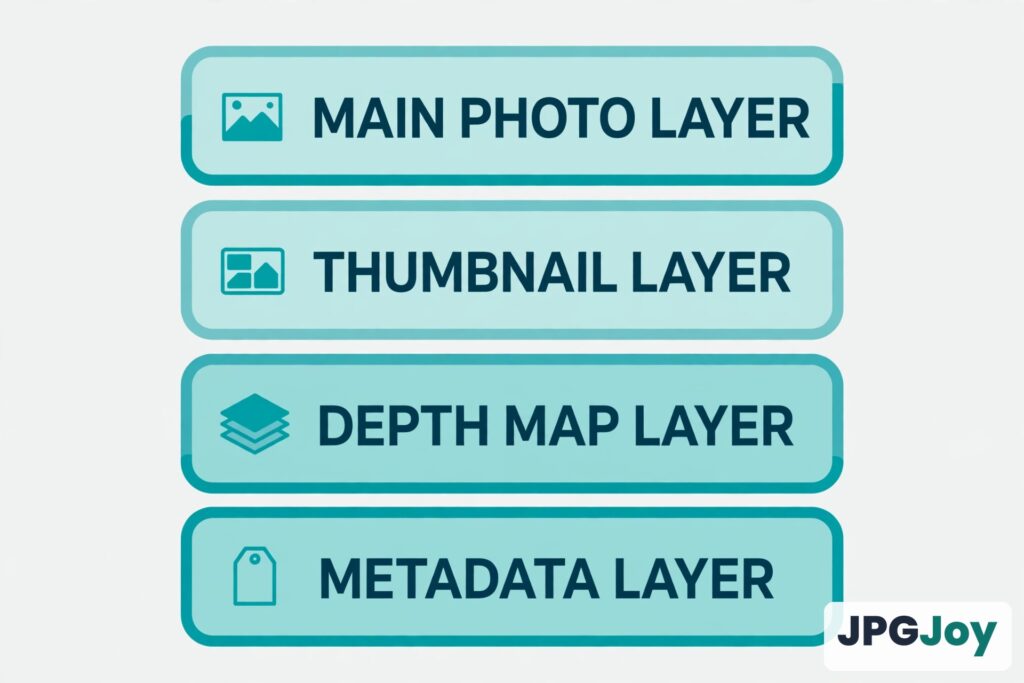
The “container” part matters too. A HEIC file is not just one picture. Like a zip file, it can bundle several things together: the photo itself, a small preview thumbnail, camera and location metadata, a depth map for Portrait mode, and even multiple frames from a Live Photo or burst sequence. All of that lives inside a single .heic file.
HEIF vs HEIC: What’s the Difference?
Anyone researching what is HEIC quickly runs into a second name, HEIF, and the two names cause a lot of confusion.
HEIF (High Efficiency Image File Format) is the underlying standard. It was developed by the Moving Picture Experts Group, the same organisation behind MP3 and MP4. It is the open container specification.
HEIC is Apple’s specific implementation of that standard: HEIF files whose picture data is compressed with the HEVC codec. On Apple devices you will almost always see the .heic extension, while .heif files show up from some cameras and Android phones.
For everyday purposes, you can treat them as the same family. If the extension is .heic, you are looking at an Apple-style HEIF file.
Why Apple Switched to HEIC in 2017
With iOS 11 in 2017, Apple made HEIC the default photo format on the iPhone 7 and newer models, and macOS High Sierra brought the same support to the Mac. Apple explained the move in its support documentation on using HEIF and HEVC media on Apple devices: the formats use less space on the device and in iCloud Photos. In other words, what is HEIC to Apple is mainly a storage win.
The motivation was storage. iPhone cameras were getting dramatically better, and better sensors mean bigger photos. Rather than forcing everyone to buy larger storage tiers, Apple moved the whole fleet to a format that stores the same quality in about half the space.
It was also a natural step. Apple had already embraced the same group’s technologies before, including the HEVC/H.265 video codec in the mid-2010s. Moving still photos to the same compression family was the logical next move.
HEIC vs JPG: The Real File Size Maths
JPG (or JPEG) is the 1992-era workhorse of photo formats. It uses lossy compression, which means it throws away some image data to shrink the file. HEIC also uses lossy compression, but it throws away data far more intelligently.
Here is what that means in real numbers for a typical 12-megapixel iPhone photo:
| Format | Typical size (12 MP photo) | Color depth | Transparency |
|---|---|---|---|
| HEIC | 1.5 to 3 MB | Up to 16-bit | Yes |
| JPG | 3 to 6 MB | 8-bit only | No |
Multiply that across a camera roll. A library of 5,000 photos takes roughly 10 to 15 GB as HEIC, versus 20 to 30 GB as JPG. That is a difference you can feel, both on the phone and in your iCloud storage bill.
Importantly, this is not a quality sacrifice. At the same file size, HEIC actually keeps more detail and shows fewer compression artefacts, like blockiness and banding, than JPG. To match HEIC’s quality, a JPG needs to be saved at a larger size. HEIC gives you smaller files and equal or better quality, not a trade-off between the two.
The Features JPG Simply Can’t Match
Smaller files are only part of the story. HEIC’s modern design gives it abilities the 30-year-old JPG format was never built for.
More color depth
JPG tops out at 8 bits per color channel, about 16.7 million colors. That sounds like plenty, but it causes visible banding in smooth gradients, like a sunset sky. HEIC can carry 10-bit or even 16-bit color, which means smoother gradients and more headroom for editing.
Real transparency
JPG has no transparency at all. HEIC does, which makes it useful for logos, stickers, and graphics with transparent backgrounds.
Multiple images in one file
A single HEIC file can hold several related images. That is how Apple stores a Live Photo’s frames, a burst sequence, or the depth data behind Portrait mode blur, all packaged with the main image instead of scattered across separate files.
Built-in edit data
Portrait mode is a good example. The blur that softens the background is not baked into the photo. It is stored as depth data alongside it, which is why you can adjust the blur after the shot. Adobe notes in its HEIC file overview that the format is a container holding the image plus its relevant metadata, including resolution, location, and more.
The Compatibility Problem: Where HEIC Files Won’t Open
So if HEIC is better in almost every technical way, why does it cause so much trouble? One word: compatibility. JPG has been everywhere since the 1990s. HEIC is still the new arrival.
- Windows PCs do not open HEIC files out of the box. You need the free HEIF Image Extensions from the Microsoft Store, and on older versions of Windows the HEVC codec may need to be installed separately.
- Android phones have patchy support. Many devices cannot open .heic files at all, or handle them inconsistently.
- Websites and upload forms are the biggest pain point. Most image uploaders, visa applications, job portals, and form builders expect JPG or PNG. A HEIC upload is often rejected with an “unsupported file type” error.
- Older software, from old versions of Photoshop to basic image viewers, predates the format entirely.
It is worth knowing that Apple tries to smooth this over. When you share a photo through AirDrop, Messages, or email to a device that cannot handle HEIC, the iPhone usually converts it to JPG automatically. The problems start when you move the original file directly, for example copying it to a PC over USB with “Keep Originals” enabled.
How to Open a HEIC File on Any Device
Your options depend on the device, but nobody is stuck.
On a Mac
Nothing to do. macOS has supported HEIC natively since High Sierra (2017). Photos and Preview open these files directly, and you can export them to JPG or PNG from the File menu when you need a different format.
On an iPhone or iPad
Also nothing to do. Your HEIC photos open in the Photos app by design. The only time you will notice the format is when you export a photo to a non-Apple destination.
On Windows
Install the free HEIF Image Extensions from the Microsoft Store and the Photos app will open them. If thumbnails still do not appear, the HEVC Video Extensions may be needed too. Note that viewing is not the same as universal usability: many Windows programs will still need a JPG instead.
On Android
Recent Android versions and gallery apps can open HEIC on some phones, but support is inconsistent. If a HEIC file refuses to open, converting it to JPG is the reliable fix.
How to Convert HEIC to JPG
Once you understand what is HEIC, converting is the practical answer to every compatibility problem above, because JPG opens on every device, every app, and every website on earth. You have a few options:
- On a Mac: open the HEIC file in Preview or Photos, then choose File, then Export, and pick JPG. This creates a new file and leaves the original HEIC untouched.
- On an iPhone: when you share a photo through AirDrop, Messages, or Mail, the phone usually converts it to JPG automatically. To convert in bulk, move photos through the Files app or a converter.
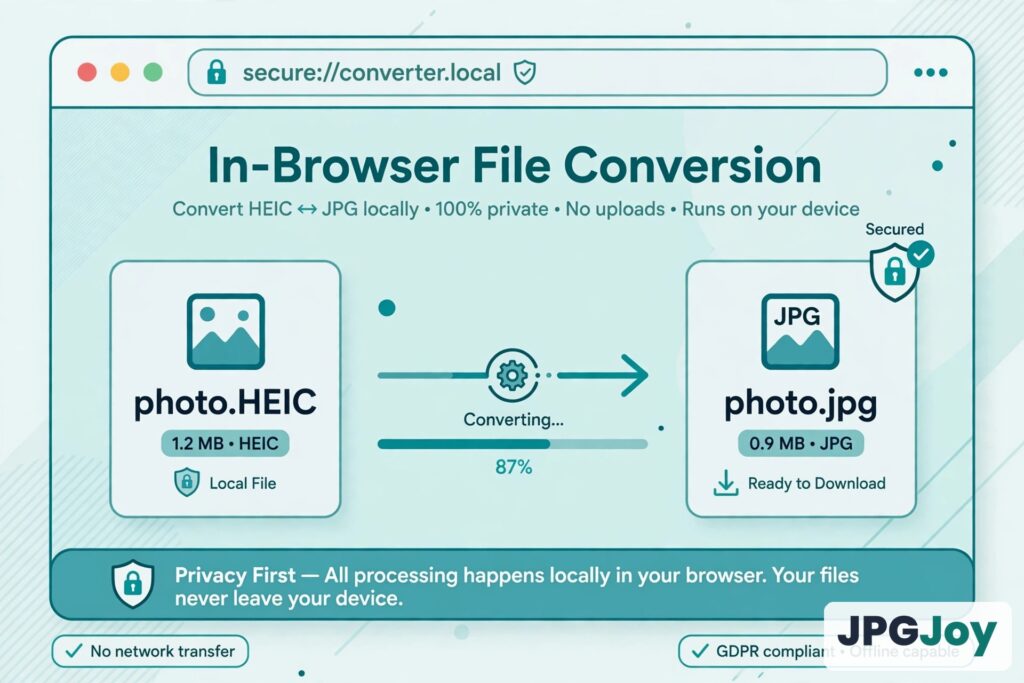
- On any device with a browser: use a free in-browser converter. This is the simplest route when you are on Windows, on a Chromebook, or on a phone that will not open the file. No software to install, no accounts to create.
One thing to avoid: never just rename the extension from .heic to .jpg. Renaming does not convert anything. The file is still a HEIC image wearing a JPG label, and programs that trust the extension will still fail to read it.
How JPGJoy Helps
If you are dealing with HEIC files, you are dealing with the exact problem JPGJoy was built for. Drop your .heic photos into the HEIC to JPG converter and they come out as universally compatible JPGs in seconds.
Everything happens 100% in your browser. Your photos never upload to any server, which is the safest way to convert personal photos. There is no sign-up, no limit on batches, and you can download everything as a single ZIP file. Camera metadata like EXIF is preserved, and you can choose JPG or PNG output depending on what you need. If you started from a different format entirely, the Convert to JPG tool handles that too.
How to Stop Your iPhone Saving Photos as HEIC
Maybe you would rather sidestep the format entirely and have your iPhone save plain old JPGs again. That is a simple settings change, and it only affects new photos, not the ones already in your library.
- Open Settings on your iPhone.
- Tap Camera.
- Tap Formats.
- Select Most Compatible.
From now on, new photos save as JPG and new videos as H.264. The trade-off is storage: each photo will take up roughly twice the space of its HEIC equivalent. You can switch back to High Efficiency at any time from the same menu.
Keep in mind this changes capture, not storage. If you flip the switch today, every HEIC photo already on your phone stays HEIC. Those are the ones worth converting.
Frequently Asked Questions
What is HEIC, in simple terms?
HEIC is short for High Efficiency Image Container. It is Apple’s photo format, used on iPhones and iPads since iOS 11 in 2017. It stores the same picture as a JPG in about half the file size.
Is HEIC the same as HEIF?
Almost. HEIF is the open container standard from the MPEG group, and HEIC is Apple’s implementation of it using the HEVC codec. A .heic file on your iPhone is a HEIF file compressed with HEVC.
Is a HEIC file better than a JPG?
Technically, yes. HEIC files are about 50% smaller at the same quality, support deeper color, transparency, and multiple images per file. But JPG wins on compatibility: it opens on every device, app, and website, while HEIC still hits walls outside the Apple ecosystem.
How do I open a HEIC photo on Windows?
Install the free HEIF Image Extensions from the Microsoft Store, and the Photos app will open the file. If you need to share, upload, or edit the photo, converting it to JPG is still the more reliable option.
Does converting HEIC to JPG reduce quality?
A good conversion preserves everything your eyes can see. Both formats are lossy, so a conversion is a re-compression, but converting from a high-quality HEIC to a high-quality JPG produces a photo that looks identical in normal use.
Why does my iPhone sometimes save JPGs instead of HEIC?
A few things trigger this. If your Camera Formats setting is on Most Compatible, the phone shoots JPG. The phone also auto-converts to JPG when sharing to non-Apple devices, and some third-party camera apps save JPG by default.
Can I convert HEIC photos without uploading them anywhere?
Yes. In-browser converters like JPGJoy process the files entirely on your device, so your photos never leave your phone or computer. That is the safest way to handle private photos.
Final Thoughts
So what is HEIC, in the end? A genuinely better photo format that arrived before the rest of the world was ready for it. Apple’s bet on half-size photos was smart engineering, but the compatibility gap it created is real, and it is not closing quickly.
Your strategy is simple: keep HEIC for storage on your Apple devices, where it saves you gigabytes, and convert to JPG whenever a photo needs to travel to the wider world. Convert your HEIC photos to JPG for free with JPGJoy, right in your browser, with your photos never leaving your device.
